[Windows Phone] Simulate the hard key on Emulator
The Windows Phone SDK ships with a handy virtual machine: the Windows Phone Emulator.
But it has one annoying thing. How do you “press” the hard keys, other than the three default ones — Back, Start and Search?
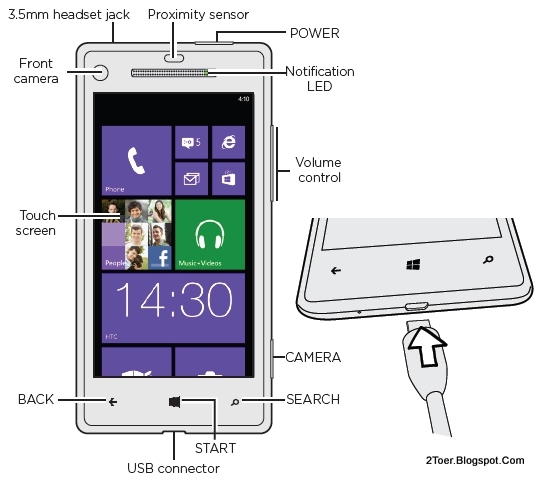
There is a way, and it is already built in
The Windows Phone SDK already has plenty of shortcuts built in so you can simulate the hard keys. Here is the list
| Key | Hard key on the phone | What it means on the phone |
|---|---|---|
| F1 | Back | Same as the back key. You can press and hold it |
| F2 | Start | Same as the Start key. Can be held too |
| F3 | Search | |
| F6 | Camera Half | Presses the Camera key halfway. Used to focus |
| F7 | Camera Full | Presses the Camera key all the way, used to take the picture |
| F9 | Volume Up | |
| F10 | Volume Down | |
| F12 | Power | The power key. Press it to turn the screen off/on |
| ESC | Back | Same as F1 |
| PAUSE/BREAK | Toggle Keyboard | Enables/hides the hardware keyboard. (Don’t confuse it with the on-screen keyboard) |
| PAGE UP | Keyboard Up | Use the on-screen keyboard |
| PAGE DOWN | Keyboard Down | Use the computer keyboard instead of the on-screen keyboard |
[youtube=http://www.youtube.com/watch?v=MprFcKyrTAA&w=448&h=252&hd=1\]