Read Markdown - A Markdown preview for the AI era
These days I read more Markdown than code. AI coding agents produce plans, specs and reports, and those files run to hundreds of lines. VS Code’s built-in preview works fine for a README, but it gets hard to use on a 600-line plan. So I built Read Markdown, a VS Code extension that renders Markdown for reading long documents.
Available on the VS Code Marketplace.
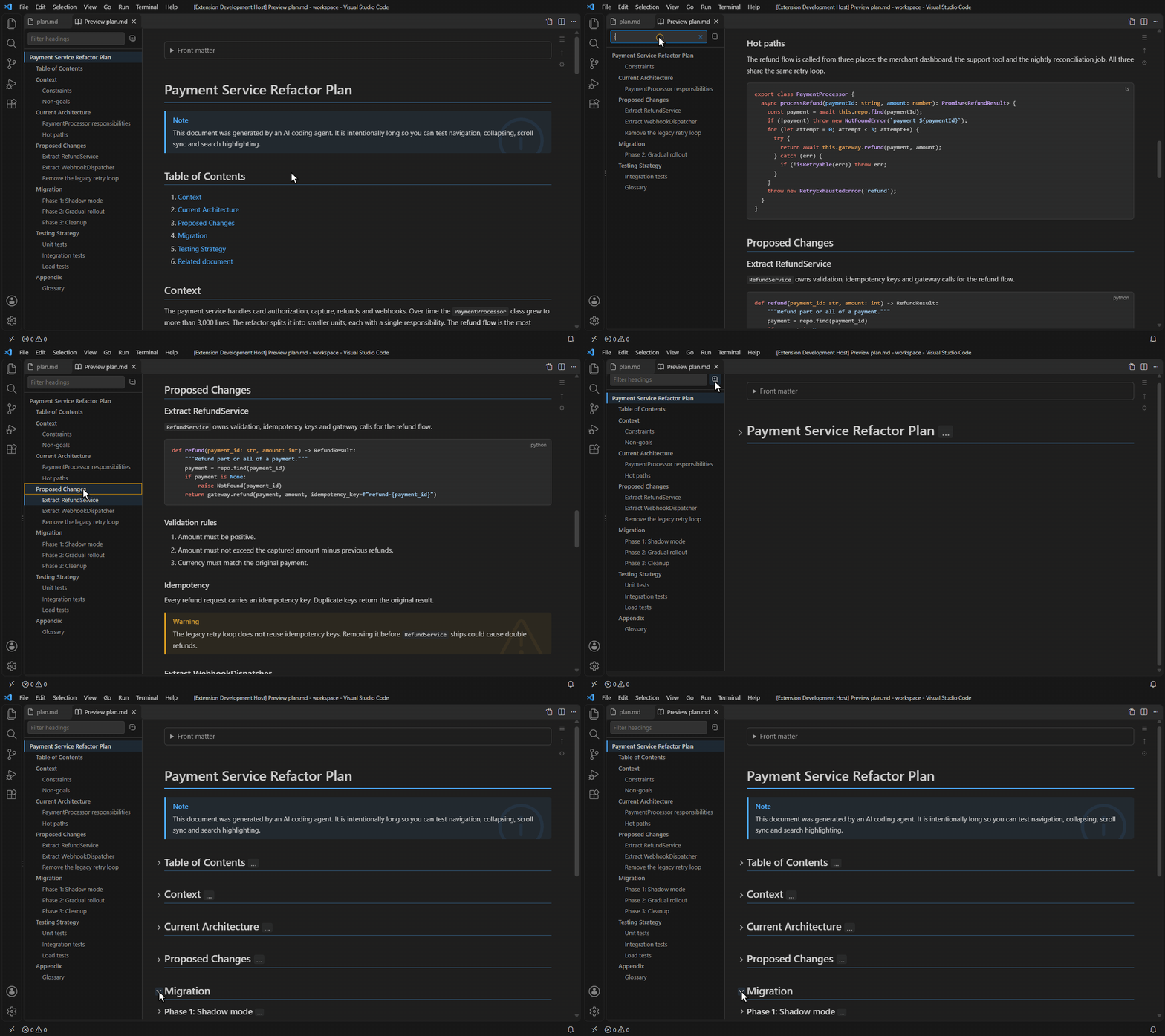
Getting started
Install it from the Marketplace, open any .md file, then do one of these:
- Click the book icon in the editor title bar (Read Markdown: Open Preview), or the button next to it to open the preview to the side.
- Right-click a Markdown file in the Explorer and pick Read Markdown: Open Preview.
- Use Reopen Editor With… → Read Markdown Preview.
If you want it to replace the built-in preview completely, turn on readMarkdown.preview.replaceDefault. Ctrl+Shift+V and Ctrl+K V (Cmd on Mac) then open Read Markdown instead. Set readMarkdown.preview.autoOpen to beside or active to open the preview automatically whenever you open a Markdown file.
It requires VS Code 1.90 or newer.
What it does
Find your way around long documents
- Quick navigation: a sidebar outline of every heading. It has a filter box, highlights the section you are reading, and can collapse or expand everything. Drag its edge to resize it.
- Collapsible sections: every heading has a chevron that folds its content away. Fold state is kept while the document updates. You can also start long documents collapsed below a chosen heading level with
readMarkdown.sections.startCollapsedBelowLevel.
Keep source and preview in sync
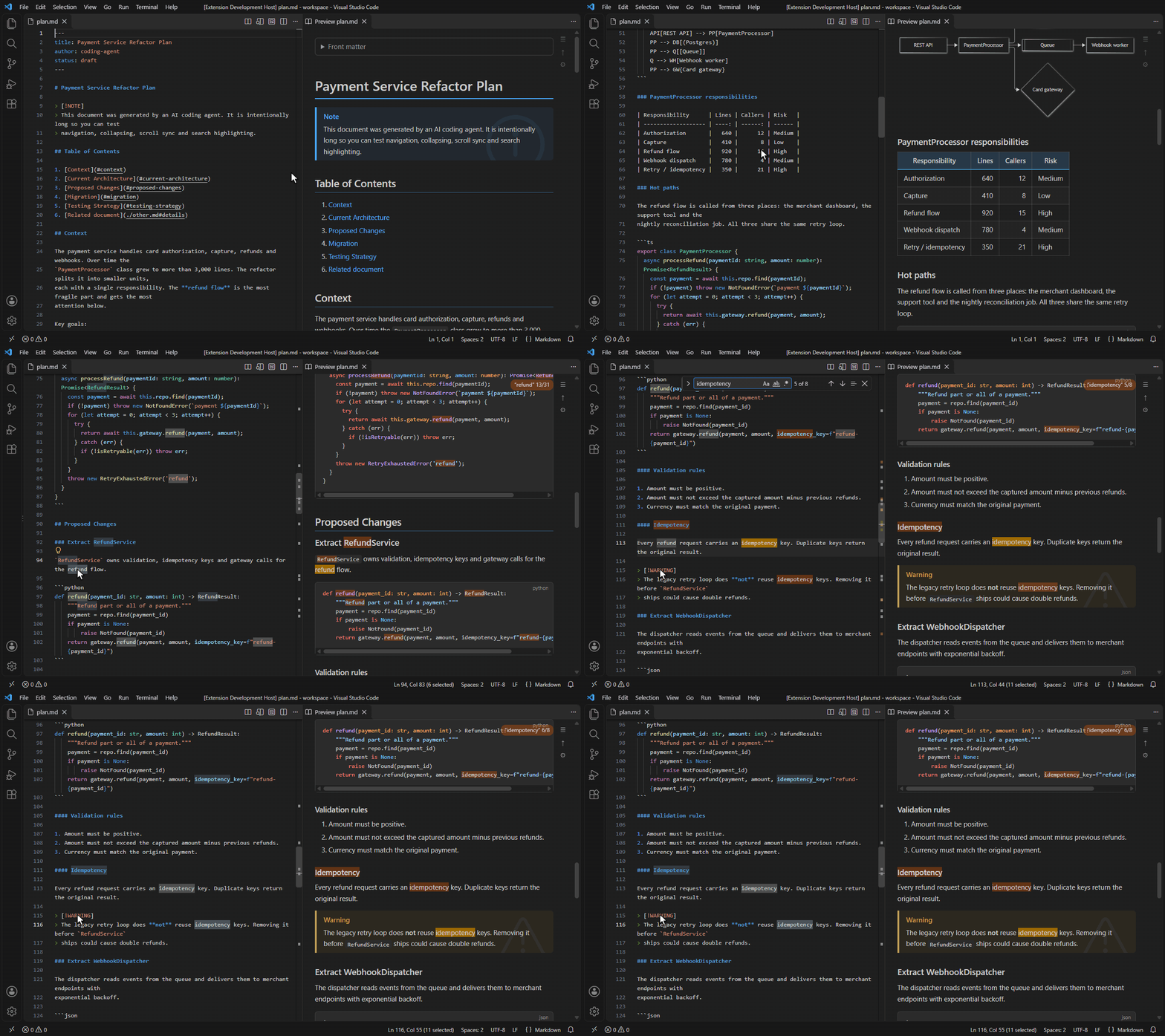
- Search highlight sync: select a word in the source, or step through Find matches, and every occurrence is highlighted in the preview.
- Scroll sync: the source and the preview scroll together, in both directions.
- Live refresh: the preview updates as you type, and also when the file changes on disk. That second part matters when an agent is rewriting the file behind your back.
Make it comfortable to read
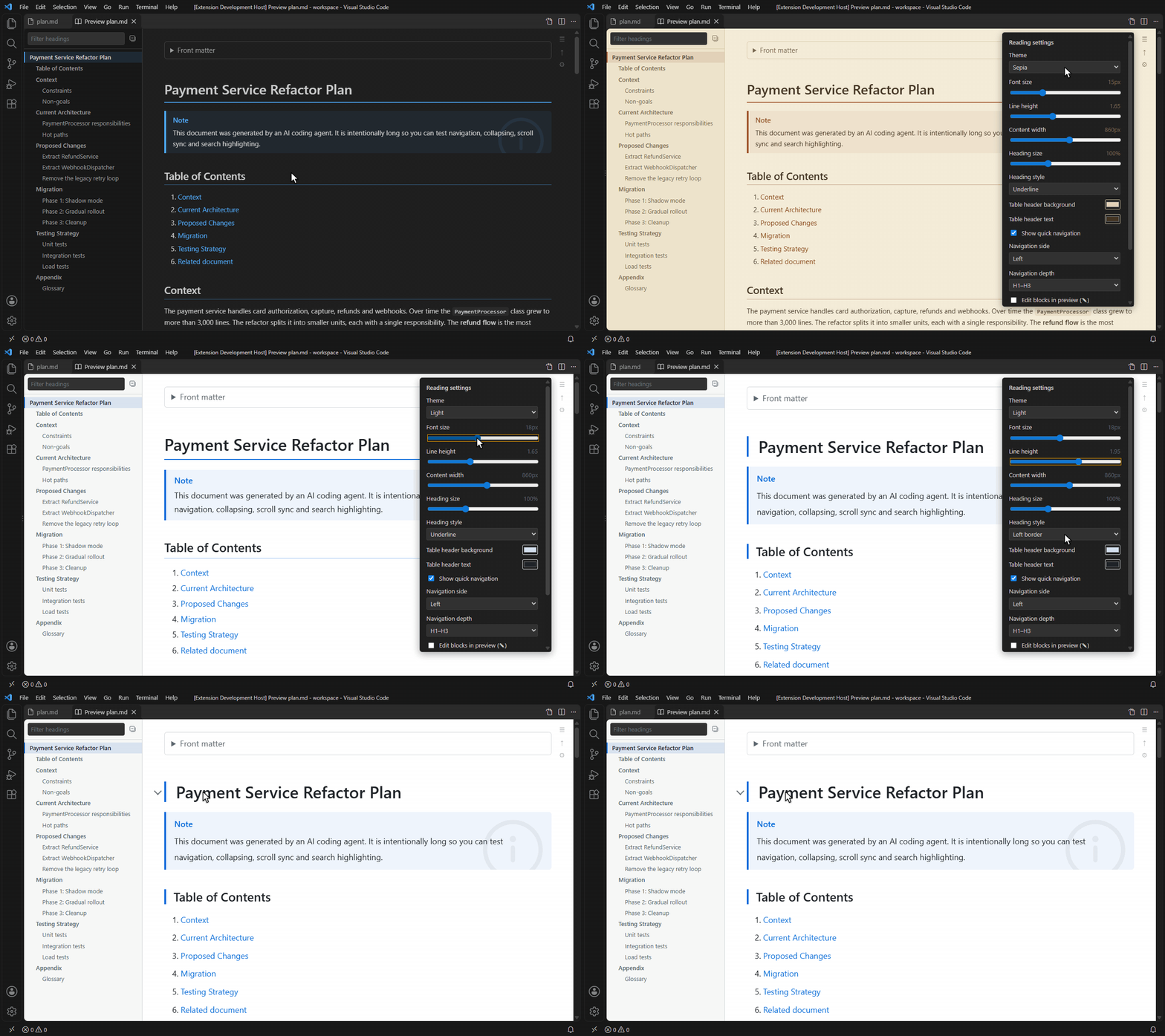
- Theme presets:
vscode(follows your VS Code color theme),light,dark,sepiaandhigh-contrast. Sepia is my favorite for long reads. - Typography: font, size, line height, content width, background and text colors, per-level heading sizes and colors, and a heading highlight style (underline, background or left border).
- Custom CSS: inline, or from files that are watched and reloaded when they change.
- Quick settings panel: the ⚙ button in the preview changes the common options without opening the settings UI.
Everything else you expect
Syntax-highlighted code blocks with a copy button, Mermaid diagrams, GitHub alerts (> [!NOTE] and friends), task lists, footnotes and front matter.
Edit in the preview (opt-in)
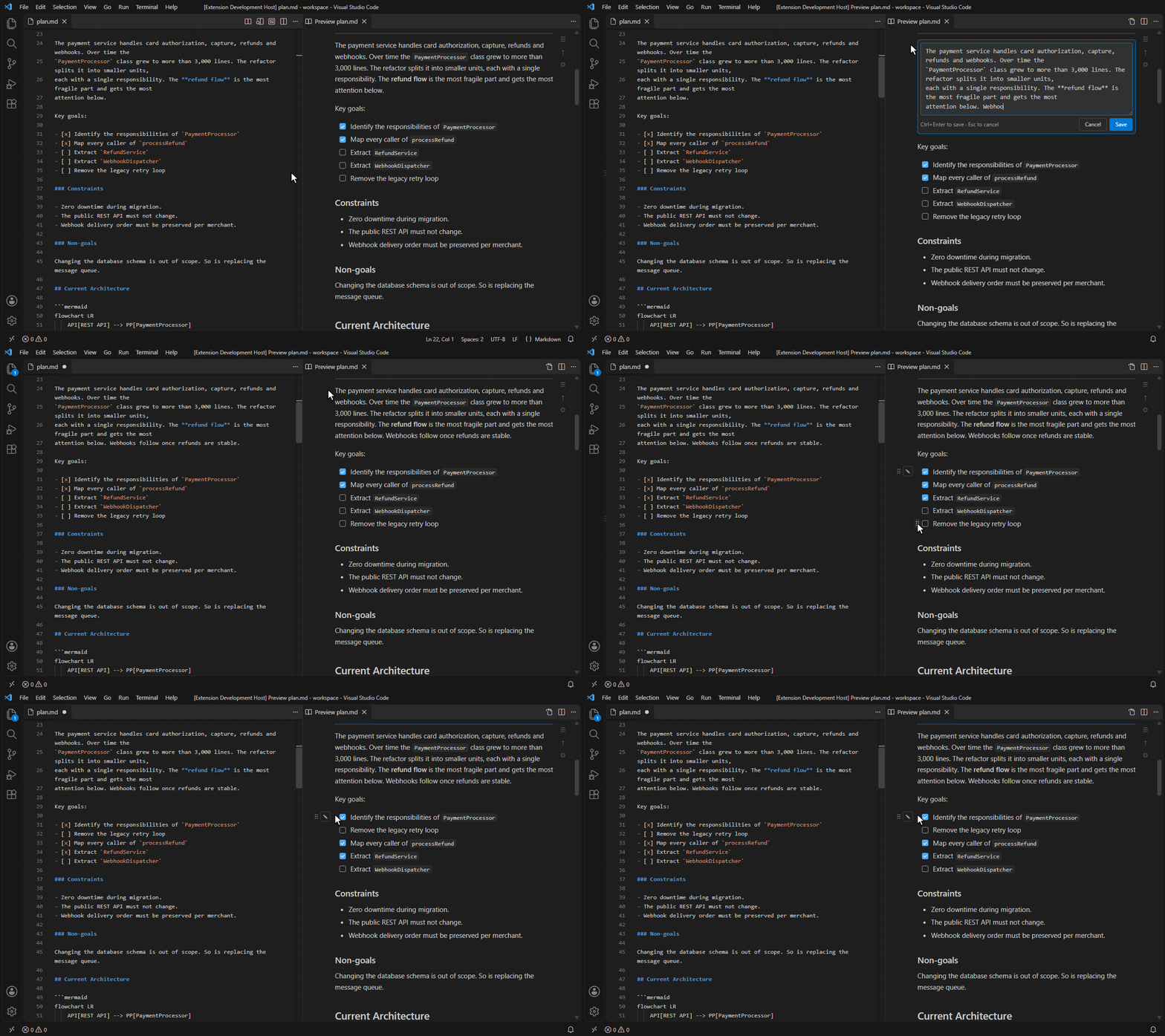
Sometimes I want to fix one sentence without switching back to the source. With readMarkdown.edit.enabled turned on:
- Hover a block and click ✎ to edit its Markdown source in place.
Ctrl+Entersaves it andEsccancels. - Click a task checkbox to tick it in the source.
- Reorder list items by dragging the ⠿ grip, or with
Alt+↑/Alt+↓.
Edits go through VS Code’s normal undo stack. If the file changes while a block is open, saving that block is refused, so you won’t overwrite something the agent just wrote.
See what changed since you last looked
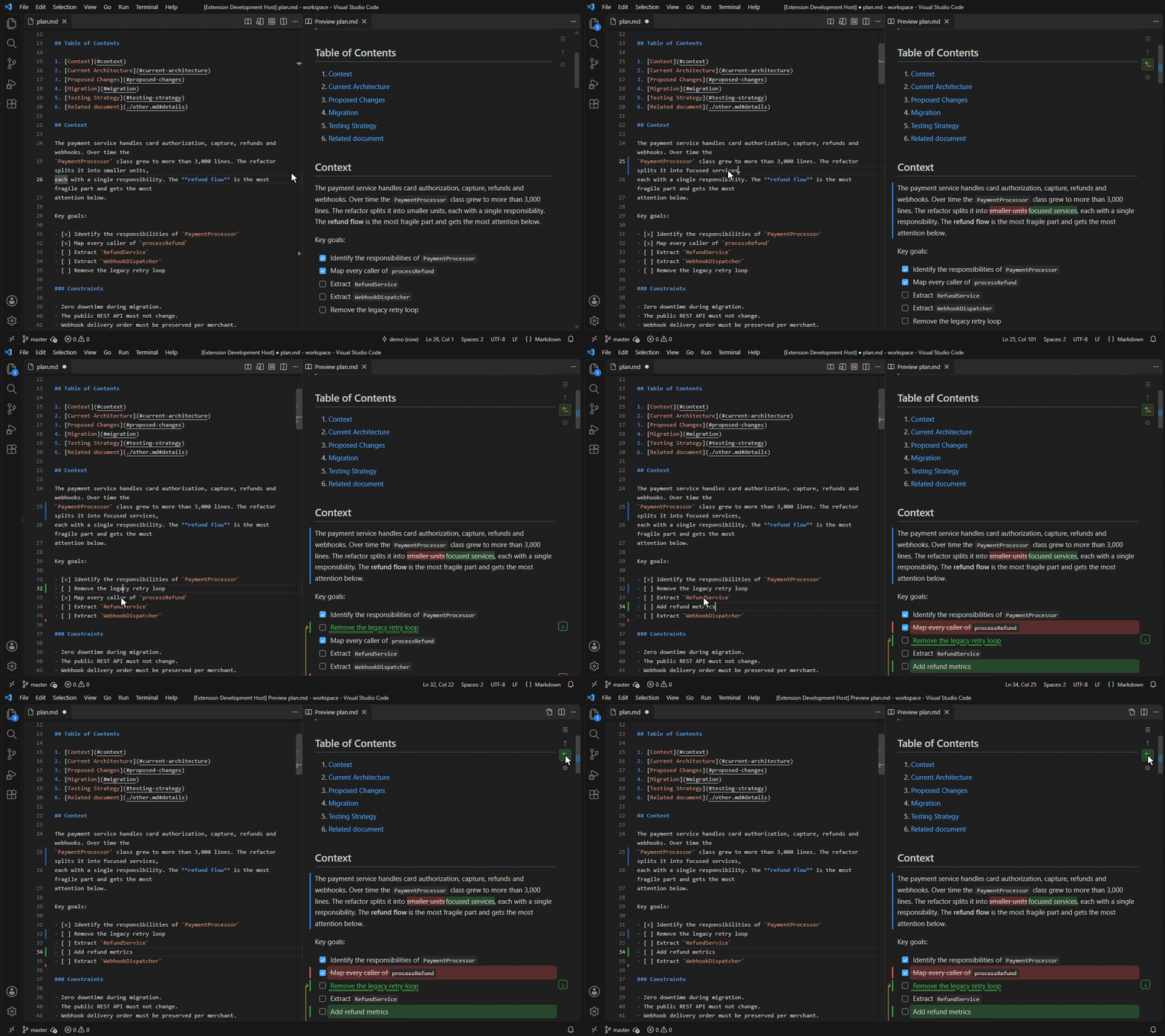
This is the feature I use most when reviewing agent output. For a git-tracked file, the preview shows the differences from the staged version, like track changes in Word:
- Removed words are struck through in red, and new words are shown in green.
- Moved blocks are double-struck where they were and double-underlined where they are now, joined by a yellow arrow.
- Change bars and scrollbar marks show where the changes are.
My workflow: stage the plan, ask the agent to revise it, then read only what changed. Staging again clears the marks. The ± button switches between inline changes and bars only.
Follow an agent’s plan as it runs
Agents like to write a plan as a checklist and tick items off as they go. Read Markdown understands one extra marker:
- [x] Set up the project
- [/] Write the parser      <- in progress
- [ ] Add tests
A - [/] step ([~] and [-] work too) gets a dashed checkbox and an animated “working” label. The preview scrolls to it when it starts, and the step flashes when it gets checked. Outline headings also show a progress bar and done/total counts, so you can see how far along each section is.
To use it, tell your agent about the convention in CLAUDE.md, AGENTS.md or whatever instruction file it reads. For example: “When working through a plan file, mark the current step with - [/] and tick it with - [x] when done.”
Known limitations
- The extension can’t hide VS Code’s own preview button, so you will see both.
- Extensions can’t read the Find widget’s text, so search sync follows the editor selection instead.
- Clicking a file in Source Control still opens VS Code’s own diff view.
- Removed text in change tracking is for reference only. Search, the outline and block editing skip it.
- Lists inside blockquotes can’t be reordered, and read-only documents (such as files from git history) can’t be edited.
Built with Claude
Like my other recent projects, this one was built with Claude. The extension is written in TypeScript, uses markdown-it for rendering, highlight.js for code and Mermaid for diagrams, and is bundled with esbuild. Over a handful of releases it went from a plain preview with an outline to in-place editing, git change tracking and agent plan progress.
Try it
- VS Code Marketplace: huntertran.read-markdown
- Source code: github.com/huntertran/read-markdown (GPL-3.0)